> ## Documentation Index
> Fetch the complete documentation index at: https://docs.superglue.cloud/llms.txt
> Use this file to discover all available pages before exploring further.
# Secure Gateway
> Connect superglue to private data sources that aren't publicly accessible
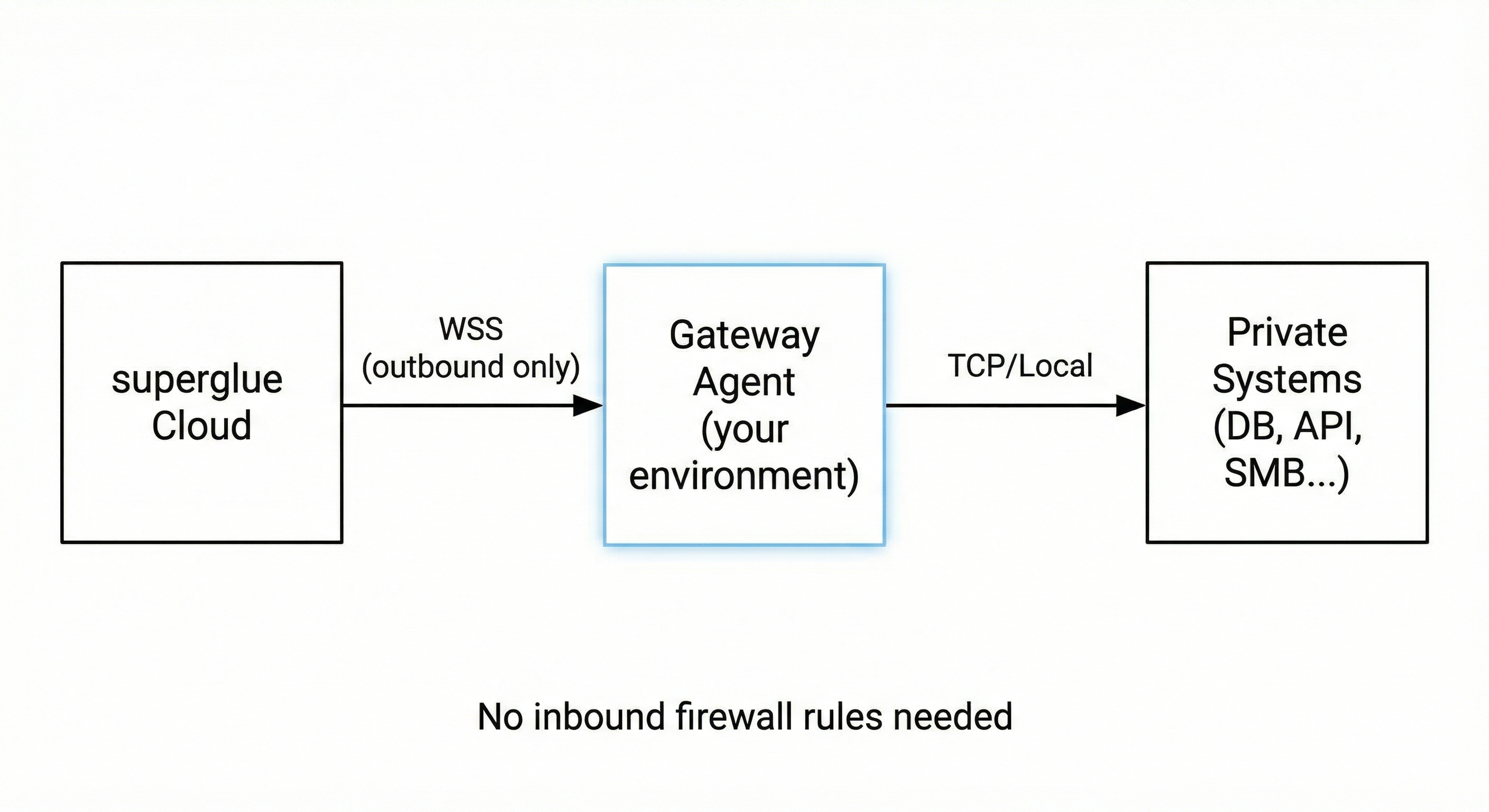
The superglue Secure Gateway enables connections from superglue Cloud to data sources that aren't publicly accessible. Deploy a lightweight agent in your private environment, and it establishes a secure outbound connection to superglue - no inbound firewall rules required.
## Use Cases
* **On-premises servers** behind corporate firewalls
* **Cloud VPCs** (AWS, Azure, GCP) without public endpoints
* **Kubernetes clusters** with internal-only services
* **Development environments** and localhost
* **Any system** that only allows outbound connections
Common data sources:
* Internal REST APIs
* Databases (PostgreSQL, MSSQL) in private subnets
* Windows file shares (SMB) on corporate networks
* SFTP servers behind firewalls
## How It Works
The gateway agent runs in your private environment and establishes an outbound WebSocket connection to superglue Cloud. When a tool needs to access a private system, superglue routes the request through the gateway.
 **Key benefits:**
* No inbound firewall rules required
* All traffic encrypted via TLS
* Agent only exposes explicitly configured targets
* Credentials stay in your environment
## Installation
### Download Pre-built Binary
First, check your system architecture:
```bash theme={null}
uname -m
```
Then download the appropriate binary:
````bash curl -L https://downloads.superglue.cloud/superglue-gateway-linux-x86_64 -o theme={null}
superglue-gateway && chmod +x superglue-gateway ```
```bash curl -L https://downloads.superglue.cloud/superglue-gateway-linux-arm64 -o
superglue-gateway && chmod +x superglue-gateway ```
```powershell Invoke-WebRequest -Uri
https://downloads.superglue.cloud/superglue-gateway-windows.exe -OutFile superglue-gateway.exe
````
### Build from Source
If you prefer to build from source (requires Go 1.21+):
```bash theme={null}
git clone https://github.com/superglue-ai/superglue.git
cd superglue/tunnel-agent
go build -o superglue-gateway .
```
## Configuration
Create a `config.yaml` file with your settings:
```yaml theme={null}
tunnel_id: "acme-corp"
server_url: "wss://api.superglue.cloud/ws/tunnels"
api_key: "sg_your_api_key_here"
targets:
internal_api: "192.168.1.10:8080"
```
```yaml theme={null}
tunnel_id: "aws-prod"
server_url: "wss://api.superglue.cloud/ws/tunnels"
api_key: "sg_your_api_key_here"
targets:
# Private ALB or internal service
internal_alb: "internal-alb-123456.us-east-1.elb.amazonaws.com:80"
```
```yaml theme={null}
tunnel_id: "acme-corp"
server_url: "wss://api.superglue.cloud/ws/tunnels"
api_key: "sg_your_api_key_here"
targets:
postgres: "192.168.1.50:5432"
```
```yaml theme={null}
tunnel_id: "acme-corp"
server_url: "wss://api.superglue.cloud/ws/tunnels"
api_key: "sg_your_api_key_here"
targets:
mssql: "192.168.1.50:1433"
# Or for Azure SQL:
# azure_sql: "myserver.database.windows.net:1433"
```
```yaml theme={null}
tunnel_id: "acme-corp"
server_url: "wss://api.superglue.cloud/ws/tunnels"
api_key: "sg_your_api_key_here"
targets:
sftp_server: "192.168.1.60:22"
```
```yaml theme={null}
tunnel_id: "acme-corp"
server_url: "wss://api.superglue.cloud/ws/tunnels"
api_key: "sg_your_api_key_here"
targets:
file_share: "192.168.1.100:445"
```
```yaml theme={null}
tunnel_id: "acme-corp"
server_url: "wss://api.superglue.cloud/ws/tunnels"
api_key: "sg_your_api_key_here"
# You can expose multiple targets through a single gateway
targets:
internal_api: "192.168.1.10:8080"
postgres: "192.168.1.50:5432"
file_share: "192.168.1.100:445"
```
### Configuration Options
| Field | Description | Required |
| ------------ | --------------------------------------------------------------------------------------- | -------- |
| `tunnel_id` | Unique identifier for this gateway connection. Appears in superglue dashboard. | Yes |
| `server_url` | superglue WebSocket endpoint. Use `wss://api.superglue.cloud/ws/tunnels` for hosted. | Yes |
| `api_key` | API key from your superglue dashboard | Yes |
| `targets` | Map of target names to `host:port` addresses. Each target becomes selectable in the UI. | Yes |
### Getting an API Key
1. Log in to your [superglue dashboard](https://app.superglue.cloud)
2. Go to **Settings** > **API Keys**
3. Click **Create API Key**
4. Copy the key and add it to your `config.yaml`
## Running the Agent
### Manual Start
`bash ./superglue-gateway -config /path/to/config.yaml `
`powershell .\superglue-gateway.exe -config C:\path\to\config.yaml `
### Debug Mode
For troubleshooting connection issues, run with the `-debug` flag to enable verbose logging:
`bash ./superglue-gateway -config /path/to/config.yaml -debug `
`powershell .\superglue-gateway.exe -config C:\path\to\config.yaml -debug `
Debug mode shows:
* WebSocket connection status and handshake details
* Incoming tunnel requests with target information
* Data channel establishment
* TCP connection attempts to local targets
* SMB protocol messages (when connecting to Windows shares)
* Bytes transferred through the tunnel
### Run in Background
To run the agent in the background so it persists after closing your terminal:
```bash theme={null}
nohup ./superglue-gateway -config config.yaml > gateway.log 2>&1 &
```
Check if running: `pgrep -a superglue-gateway`. Check logs: `tail -f gateway.log`. Stop: `pkill superglue-gateway`.
### Run as a systemd Service (Linux)
1. Create a service file `/etc/systemd/system/superglue-gateway.service`:
```ini theme={null}
[Unit]
Description=superglue Gateway Agent
After=network.target
[Service]
Type=simple
User=superglue
WorkingDirectory=/opt/superglue-gateway
ExecStart=/opt/superglue-gateway/superglue-gateway -config /opt/superglue-gateway/config.yaml
Restart=always
RestartSec=5
[Install]
WantedBy=multi-user.target
```
2. Enable and start the service:
```bash theme={null}
sudo systemctl daemon-reload
sudo systemctl enable superglue-gateway
sudo systemctl start superglue-gateway
```
3. Check status:
```bash theme={null}
sudo systemctl status superglue-gateway
sudo journalctl -u superglue-gateway -f
```
### Run as a Windows Service
1. Install [NSSM (Non-Sucking Service Manager)](https://nssm.cc/download):
```powershell theme={null}
nssm install SuperglueGateway C:\superglue\superglue-gateway.exe -config C:\superglue\config.yaml
nssm start SuperglueGateway
```
2. Check status:
```powershell theme={null}
nssm status SuperglueGateway
```
3. View logs:
```powershell theme={null}
nssm get SuperglueGateway AppStdout
```
### Run in AWS (EC2 / ECS)
For AWS VPC access, deploy the agent on an EC2 instance or ECS task within the VPC:
```bash theme={null}
# Check your architecture first
uname -m # x86_64 or aarch64
# Download the correct binary (x86_64 for most EC2, arm64 for Graviton)
curl -L https://downloads.superglue.cloud/superglue-gateway-linux-x86_64 -o superglue-gateway && chmod +x superglue-gateway
# Or for ARM/Graviton instances:
# curl -L https://downloads.superglue.cloud/superglue-gateway-linux-arm64 -o superglue-gateway && chmod +x superglue-gateway
./superglue-gateway -config config.yaml
```
The agent only needs outbound HTTPS (port 443) access to `api.superglue.cloud`.
## Set up your Private System in Superglue Dashboard
Once your gateway agent is running and connected:
1. Go to **Systems** in your superglue dashboard
2. Click **Add System** and select **Private System**
3. Select your connected gateway from the list
4. Choose the target endpoint you want to use
5. Configure authentication (API keys, etc.) if needed
6. Add documentation for the system
7. Save the system
If no gateways appear in the list, verify that: - The gateway agent is running and connected - The
API key is valid - The `tunnel_id` matches what you expect
## Troubleshooting
### Gateway won't connect
* Verify your API key is correct
* Check that outbound WebSocket connections (port 443) are allowed
* Ensure the `server_url` is correct for your superglue instance
### Target connection fails
* Verify the target address is reachable from the gateway host
* Check firewall rules / security groups between the gateway and target
* Test connectivity: `nc -zv `
### Connection drops frequently
* Check network stability between gateway and superglue cloud
* Review gateway logs for specific error messages
* Ensure no proxy/firewall is terminating idle connections
## Security Considerations
* The gateway only exposes explicitly configured targets
* All traffic is encrypted via TLS (WebSocket Secure)
* The gateway initiates outbound connections only (no inbound ports needed)
* API keys should be kept secure and rotated periodically
* Consider running the gateway with minimal privileges
* In AWS, use IAM roles and security groups to restrict gateway access
**Key benefits:**
* No inbound firewall rules required
* All traffic encrypted via TLS
* Agent only exposes explicitly configured targets
* Credentials stay in your environment
## Installation
### Download Pre-built Binary
First, check your system architecture:
```bash theme={null}
uname -m
```
Then download the appropriate binary:
````bash curl -L https://downloads.superglue.cloud/superglue-gateway-linux-x86_64 -o theme={null}
superglue-gateway && chmod +x superglue-gateway ```
```bash curl -L https://downloads.superglue.cloud/superglue-gateway-linux-arm64 -o
superglue-gateway && chmod +x superglue-gateway ```
```powershell Invoke-WebRequest -Uri
https://downloads.superglue.cloud/superglue-gateway-windows.exe -OutFile superglue-gateway.exe
````
### Build from Source
If you prefer to build from source (requires Go 1.21+):
```bash theme={null}
git clone https://github.com/superglue-ai/superglue.git
cd superglue/tunnel-agent
go build -o superglue-gateway .
```
## Configuration
Create a `config.yaml` file with your settings:
```yaml theme={null}
tunnel_id: "acme-corp"
server_url: "wss://api.superglue.cloud/ws/tunnels"
api_key: "sg_your_api_key_here"
targets:
internal_api: "192.168.1.10:8080"
```
```yaml theme={null}
tunnel_id: "aws-prod"
server_url: "wss://api.superglue.cloud/ws/tunnels"
api_key: "sg_your_api_key_here"
targets:
# Private ALB or internal service
internal_alb: "internal-alb-123456.us-east-1.elb.amazonaws.com:80"
```
```yaml theme={null}
tunnel_id: "acme-corp"
server_url: "wss://api.superglue.cloud/ws/tunnels"
api_key: "sg_your_api_key_here"
targets:
postgres: "192.168.1.50:5432"
```
```yaml theme={null}
tunnel_id: "acme-corp"
server_url: "wss://api.superglue.cloud/ws/tunnels"
api_key: "sg_your_api_key_here"
targets:
mssql: "192.168.1.50:1433"
# Or for Azure SQL:
# azure_sql: "myserver.database.windows.net:1433"
```
```yaml theme={null}
tunnel_id: "acme-corp"
server_url: "wss://api.superglue.cloud/ws/tunnels"
api_key: "sg_your_api_key_here"
targets:
sftp_server: "192.168.1.60:22"
```
```yaml theme={null}
tunnel_id: "acme-corp"
server_url: "wss://api.superglue.cloud/ws/tunnels"
api_key: "sg_your_api_key_here"
targets:
file_share: "192.168.1.100:445"
```
```yaml theme={null}
tunnel_id: "acme-corp"
server_url: "wss://api.superglue.cloud/ws/tunnels"
api_key: "sg_your_api_key_here"
# You can expose multiple targets through a single gateway
targets:
internal_api: "192.168.1.10:8080"
postgres: "192.168.1.50:5432"
file_share: "192.168.1.100:445"
```
### Configuration Options
| Field | Description | Required |
| ------------ | --------------------------------------------------------------------------------------- | -------- |
| `tunnel_id` | Unique identifier for this gateway connection. Appears in superglue dashboard. | Yes |
| `server_url` | superglue WebSocket endpoint. Use `wss://api.superglue.cloud/ws/tunnels` for hosted. | Yes |
| `api_key` | API key from your superglue dashboard | Yes |
| `targets` | Map of target names to `host:port` addresses. Each target becomes selectable in the UI. | Yes |
### Getting an API Key
1. Log in to your [superglue dashboard](https://app.superglue.cloud)
2. Go to **Settings** > **API Keys**
3. Click **Create API Key**
4. Copy the key and add it to your `config.yaml`
## Running the Agent
### Manual Start
`bash ./superglue-gateway -config /path/to/config.yaml `
`powershell .\superglue-gateway.exe -config C:\path\to\config.yaml `
### Debug Mode
For troubleshooting connection issues, run with the `-debug` flag to enable verbose logging:
`bash ./superglue-gateway -config /path/to/config.yaml -debug `
`powershell .\superglue-gateway.exe -config C:\path\to\config.yaml -debug `
Debug mode shows:
* WebSocket connection status and handshake details
* Incoming tunnel requests with target information
* Data channel establishment
* TCP connection attempts to local targets
* SMB protocol messages (when connecting to Windows shares)
* Bytes transferred through the tunnel
### Run in Background
To run the agent in the background so it persists after closing your terminal:
```bash theme={null}
nohup ./superglue-gateway -config config.yaml > gateway.log 2>&1 &
```
Check if running: `pgrep -a superglue-gateway`. Check logs: `tail -f gateway.log`. Stop: `pkill superglue-gateway`.
### Run as a systemd Service (Linux)
1. Create a service file `/etc/systemd/system/superglue-gateway.service`:
```ini theme={null}
[Unit]
Description=superglue Gateway Agent
After=network.target
[Service]
Type=simple
User=superglue
WorkingDirectory=/opt/superglue-gateway
ExecStart=/opt/superglue-gateway/superglue-gateway -config /opt/superglue-gateway/config.yaml
Restart=always
RestartSec=5
[Install]
WantedBy=multi-user.target
```
2. Enable and start the service:
```bash theme={null}
sudo systemctl daemon-reload
sudo systemctl enable superglue-gateway
sudo systemctl start superglue-gateway
```
3. Check status:
```bash theme={null}
sudo systemctl status superglue-gateway
sudo journalctl -u superglue-gateway -f
```
### Run as a Windows Service
1. Install [NSSM (Non-Sucking Service Manager)](https://nssm.cc/download):
```powershell theme={null}
nssm install SuperglueGateway C:\superglue\superglue-gateway.exe -config C:\superglue\config.yaml
nssm start SuperglueGateway
```
2. Check status:
```powershell theme={null}
nssm status SuperglueGateway
```
3. View logs:
```powershell theme={null}
nssm get SuperglueGateway AppStdout
```
### Run in AWS (EC2 / ECS)
For AWS VPC access, deploy the agent on an EC2 instance or ECS task within the VPC:
```bash theme={null}
# Check your architecture first
uname -m # x86_64 or aarch64
# Download the correct binary (x86_64 for most EC2, arm64 for Graviton)
curl -L https://downloads.superglue.cloud/superglue-gateway-linux-x86_64 -o superglue-gateway && chmod +x superglue-gateway
# Or for ARM/Graviton instances:
# curl -L https://downloads.superglue.cloud/superglue-gateway-linux-arm64 -o superglue-gateway && chmod +x superglue-gateway
./superglue-gateway -config config.yaml
```
The agent only needs outbound HTTPS (port 443) access to `api.superglue.cloud`.
## Set up your Private System in Superglue Dashboard
Once your gateway agent is running and connected:
1. Go to **Systems** in your superglue dashboard
2. Click **Add System** and select **Private System**
3. Select your connected gateway from the list
4. Choose the target endpoint you want to use
5. Configure authentication (API keys, etc.) if needed
6. Add documentation for the system
7. Save the system
If no gateways appear in the list, verify that: - The gateway agent is running and connected - The
API key is valid - The `tunnel_id` matches what you expect
## Troubleshooting
### Gateway won't connect
* Verify your API key is correct
* Check that outbound WebSocket connections (port 443) are allowed
* Ensure the `server_url` is correct for your superglue instance
### Target connection fails
* Verify the target address is reachable from the gateway host
* Check firewall rules / security groups between the gateway and target
* Test connectivity: `nc -zv `
### Connection drops frequently
* Check network stability between gateway and superglue cloud
* Review gateway logs for specific error messages
* Ensure no proxy/firewall is terminating idle connections
## Security Considerations
* The gateway only exposes explicitly configured targets
* All traffic is encrypted via TLS (WebSocket Secure)
* The gateway initiates outbound connections only (no inbound ports needed)
* API keys should be kept secure and rotated periodically
* Consider running the gateway with minimal privileges
* In AWS, use IAM roles and security groups to restrict gateway access