

Documentation Index
Fetch the complete documentation index at: https://docs.superglue.cloud/llms.txt
Use this file to discover all available pages before exploring further.
Enterprise Feature — End user management is available on superglue Enterprise plans. Contact us to learn more.
How it works
Enable multi-tenancy on a system
Toggle “Multi-tenancy Mode” when configuring a system’s authentication
Enabling multi-tenancy on a system
When creating or editing a system, enable multi-tenancy mode in the Authentication section:- Navigate to Systems and select your system
- In the Authentication tab, toggle Multi-tenancy Mode
- Configure the OAuth settings (client ID, client secret, scopes) - these will be used as the template for end-user authentication
- Save the system
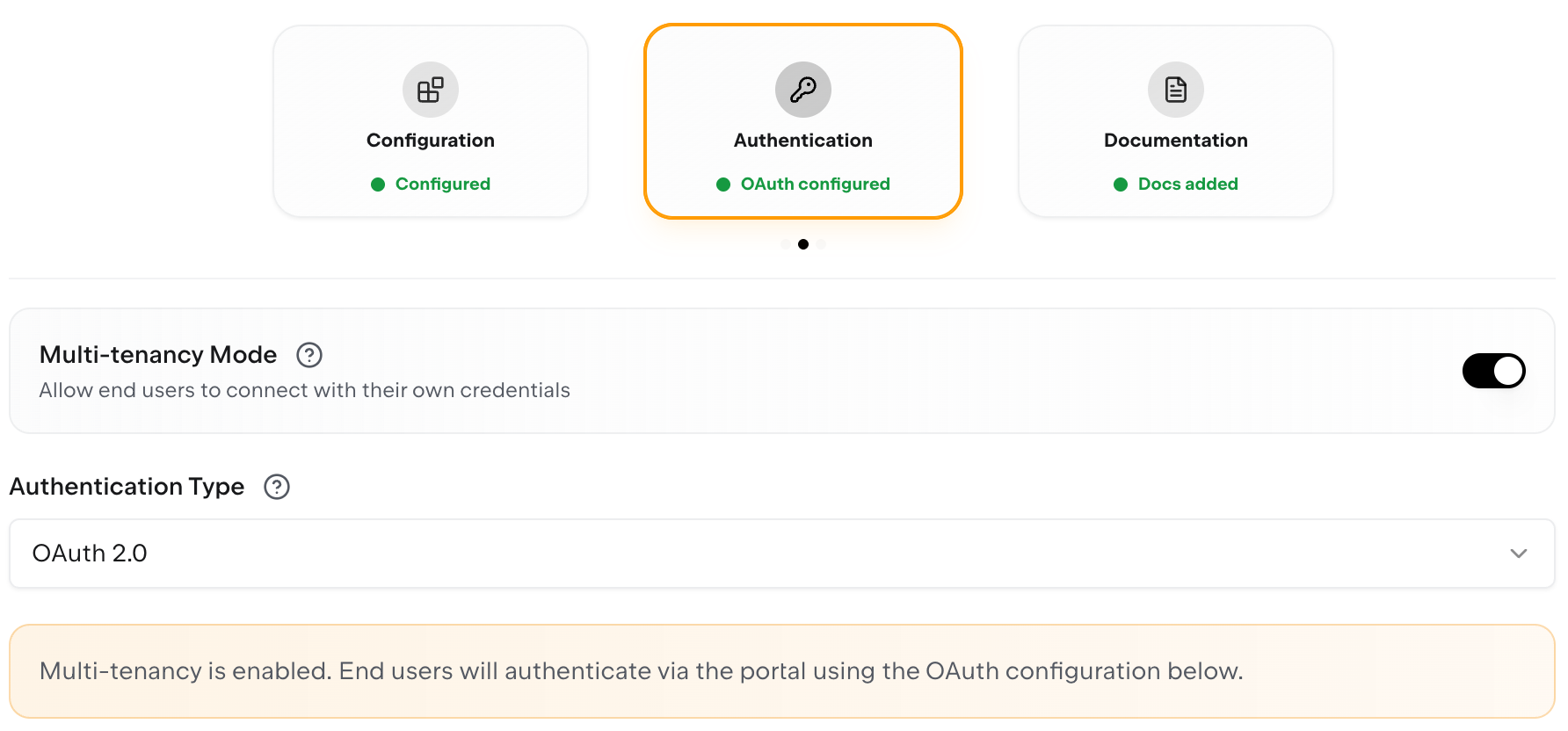
When multi-tenancy is enabled, end users authenticate via the portal using your OAuth configuration. The system acts as a template—each user gets their own tokens.
Managing end users
Creating end users in the dashboard
The easiest way to manage end users is through the Organization page:- Navigate to Control Panel → Organization
- In the End Users section, click New End User
- Enter the user’s name and email
- Click Create or Create & Add Another to add multiple users quickly
- Optionally, assign roles to control which systems and tools they can access
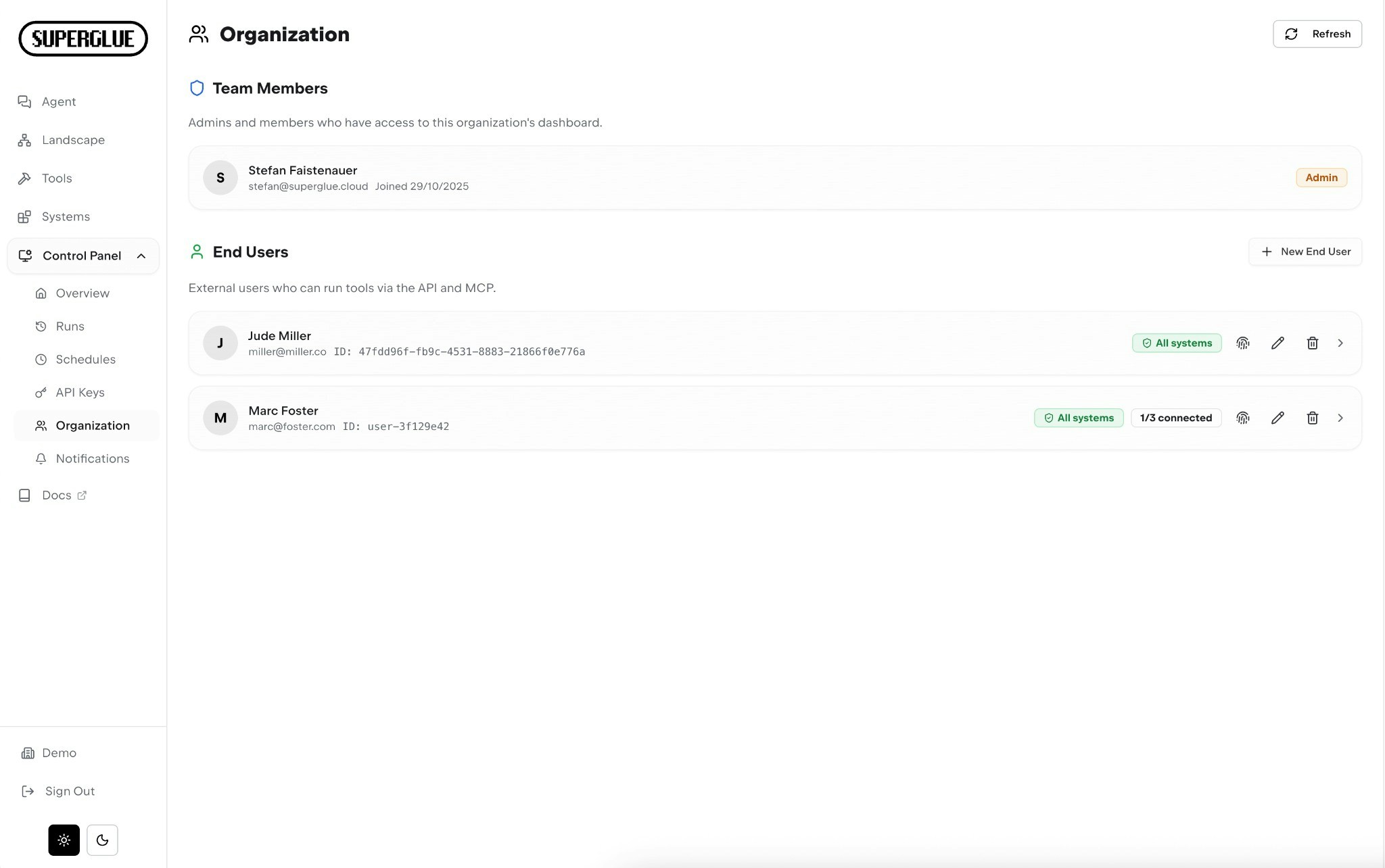
- Team Members: Admins and members who can access the superglue dashboard
- End Users: External users who authenticate via the portal to use your tools
Creating end users via API
For programmatic user management, use the REST API. Creating an end user automatically generates an API key for that user:| Field | Required | Description |
|---|---|---|
externalId | No | Your application’s user ID (auto-generated UUID if not provided) |
email | No | User’s email address |
name | No | User’s display name |
metadata | No | Arbitrary key-value metadata |
The
apiKey is only returned once at creation time. Store it securely — you won’t be able to retrieve it later.Controlling system access
You can control which systems each end user can access using Role-Based Access Control. The defaultenduser role starts with no access — assign roles with specific tool and system permissions to grant access.
The Connection Portal
The Connection Portal is where end users authenticate with external services. It provides a simple, branded experience for connecting accounts.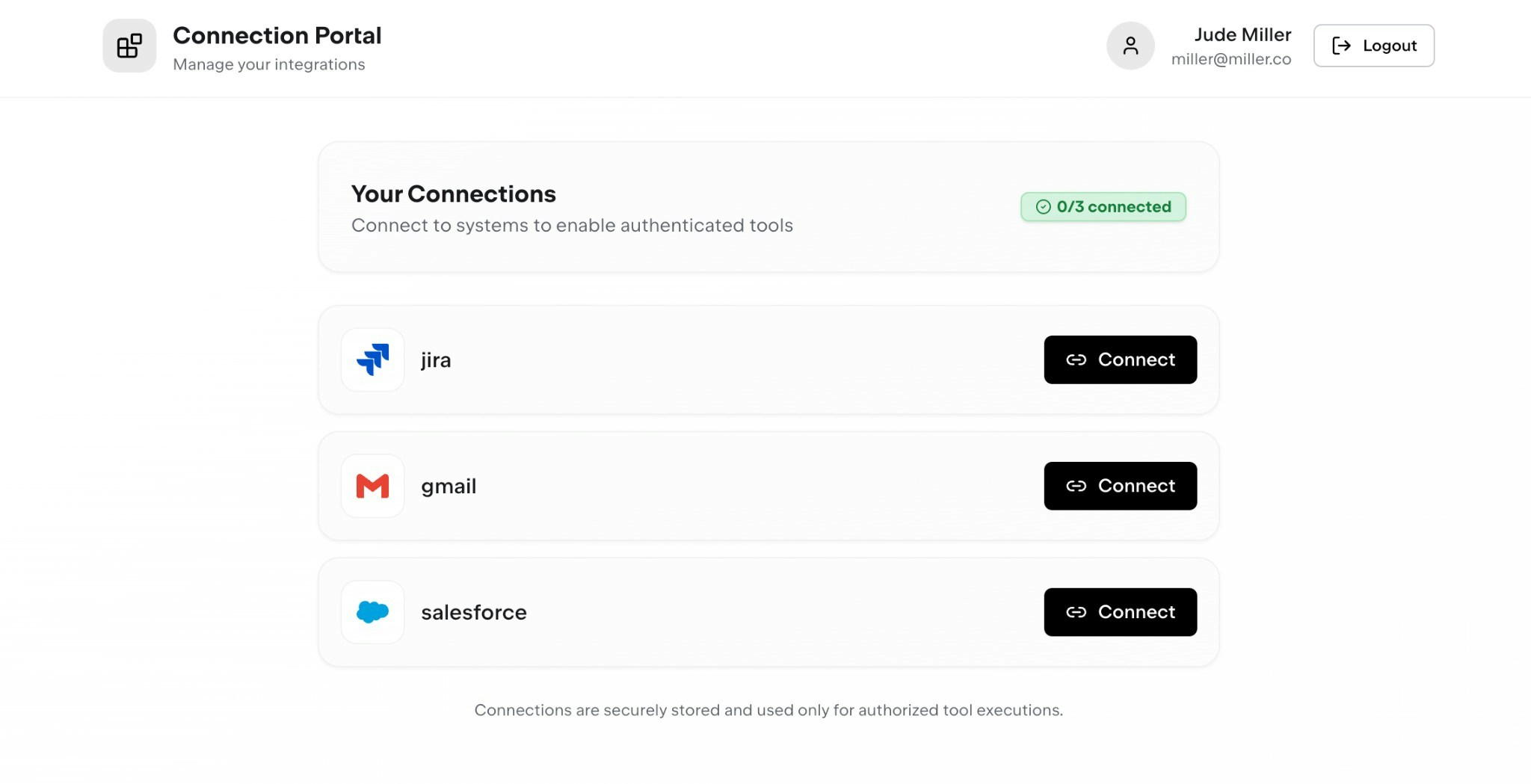
Portal features
- Shows all systems the user is allowed to access
- Displays connection status for each system
- One-click OAuth flow to connect accounts
- Users can disconnect and reconnect at any time
Generating portal links
Generate a portal link to send to a user: Via the dashboard:- Go to Control Panel → Organization
- Find the end user and click the portal icon
- The portal opens in a new tab (or copy the URL to share)
Sending portal invitations
You can send an invitation email to an end user with a portal link (valid for 30 days):Authentication via MCP
When using superglue with AI agents via MCP, end users can authenticate directly through the agent conversation.- The agent attempts to use a tool that requires authentication
- superglue returns an authentication URL
- The agent presents the link to the user
- User clicks the link, completes OAuth, and returns to the conversation
- The agent retries the tool—now with valid credentials
End-user API keys
Each end user gets an API key automatically when created. When this key is used:- All tool executions use the linked end user’s credentials
- Access is scoped by the user’s assigned roles
- All activity is logged with the end user ID
Enterprise identity providers
For organizations using enterprise identity providers, superglue can integrate with:- Microsoft Entra ID (Azure AD)
- Okta
- Auth0
- Google Workspace
- Custom SAML/OIDC providers
Enterprise identity provider integration requires custom configuration. Contact us to discuss your requirements.
Security
Credential isolation
Each user’s credentials are encrypted and isolated. Users can only access their own data.
Token expiration
Portal tokens expire after 24 hours. OAuth tokens are automatically refreshed.
Revocation
Users can disconnect systems at any time via the portal. Admins can view status in the dashboard.
Audit trail
All tool executions are logged with the end user ID for compliance and debugging.
API reference
| Endpoint | Method | Description |
|---|---|---|
/v1/end-users | GET | List all end users |
/v1/end-users | POST | Create an end user (returns API key) |
/v1/end-users/{endUserId} | GET | Get end user details |
/v1/end-users/{endUserId} | PATCH | Update an end user |
/v1/end-users/{endUserId} | DELETE | Delete an end user and their credentials |
/v1/end-users/{endUserId}/portal-token | POST | Generate portal link |
/v1/end-users/{endUserId}/invite | POST | Send portal invitation email |
/v1/authenticate?system={systemId} | POST | Generate portal link for current end user (requires end-user API key) |