

REST API & SDK
Execute tools programmatically from your codebase using the TypeScript or Python SDK, or call
the REST API directly.
MCP
Give AI agents direct access to execute tools via Model Context Protocol in Cursor, Claude, and
other MCP clients.
Schedules & Webhooks
Automate execution with cron schedules or trigger runs from external services like Stripe,
GitHub, or Shopify.
- Via UI
- Via SDK
Execute tools directly from the tool details page: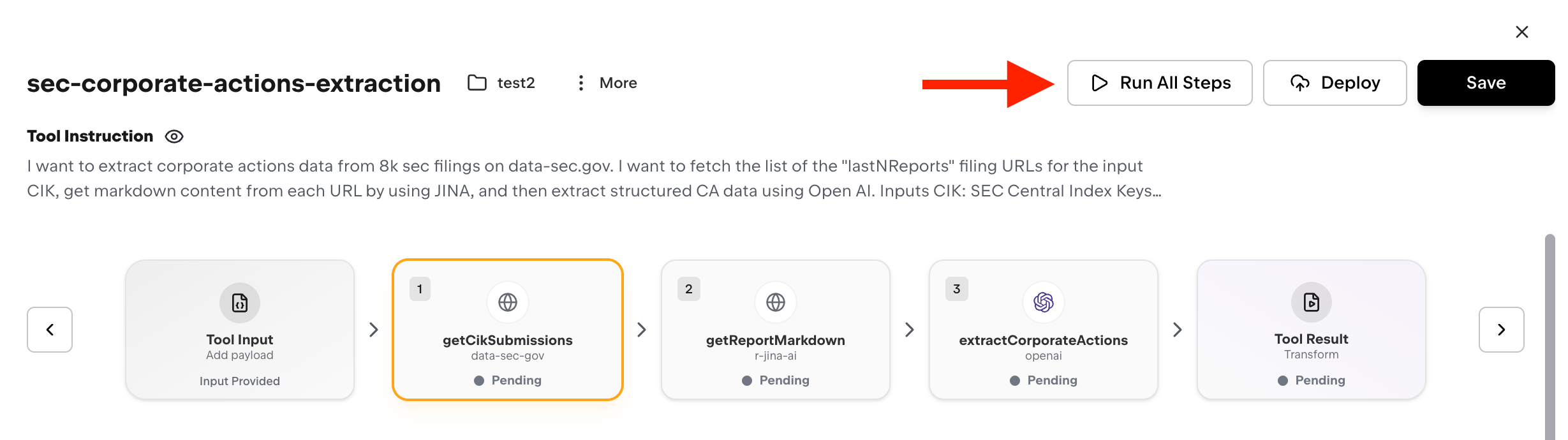
Provide input data
Enter any required input parameters in JSON format. If your tool doesn’t require input, use
{}Execute
Click “Run All Steps” to execute immediately. You’ll see real-time logs and step-by-step progress
Enterprise deployment options
superglue Enterprise offers additional deployment capabilities for automated and event-driven execution:Scheduled Execution
Automate tool runs with cron-based scheduling. Run tools at specific times or intervals.
Incoming Webhooks
Trigger tools from external services like Stripe, GitHub, or Shopify via HTTP webhooks.
Tool Chaining
Chain tools together so one tool’s output automatically triggers another tool.
Tool chaining
Chain multiple tools together to build multi-step workflows. When one tool completes, it can automatically trigger another tool with its output as input.requestSource: "tool-chain". See the webhooks documentation for more details.