

Enterprise Feature - RBAC is available on superglue Enterprise plans. Contact
us to learn more.
- Give teams the right baseline access through roles.
- Share individual tools or systems with specific people when they need direct access.
Permissions
Tools and systems use two resource permissions:| Permission | Tools | Systems |
|---|---|---|
| Viewer | Can see and run the tool, but cannot change or share it. | Can see and test the system, but cannot change or share it. |
| Editor | Includes viewer access, plus can edit, share, delete, and manage it. | Includes viewer access, plus can edit, share, and delete. |
Roles
Every member has exactly one base role:| Base role | What it means |
|---|---|
| Admin | Full access to all tools, systems, users, roles, API keys, and control-panel settings. The Admin role is fixed. |
| Member | Standard team-member access. Admins can edit the Member role’s tool and system access. |
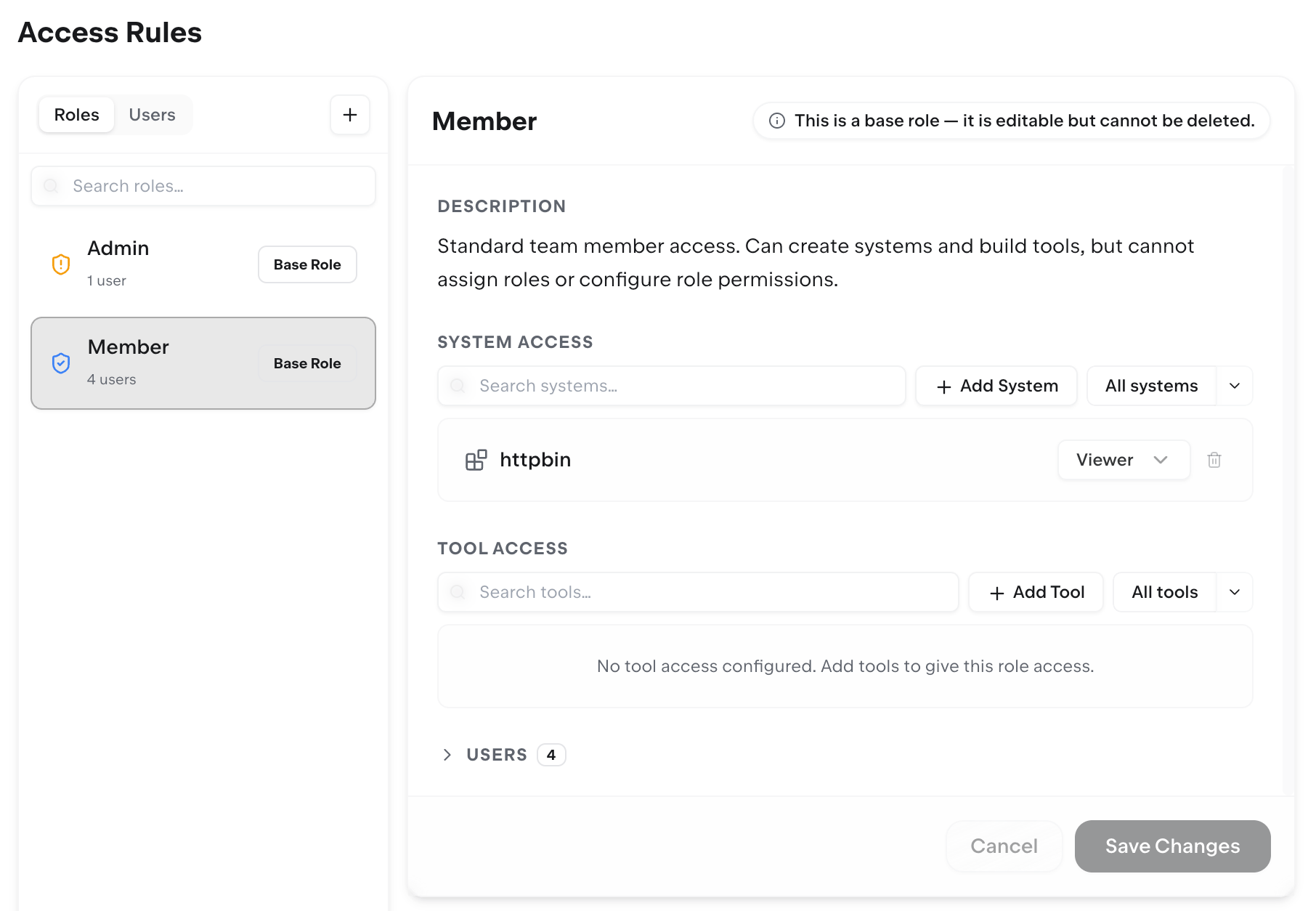
Effective Access
A user’s effective access is the combination of:- Their base role.
- Any custom roles assigned to them.
- User-specific access from ownership, direct sharing, or admin edits in the Users tab.
Tools And Required Systems
Tools depend on the systems they call. A user needs access to the tool and viewer access to each required system for the tool to be visible and runnable. When an admin adds a tool to a role in Access Rules, the UI also grants viewer access to any required systems that role does not already have. If a role has All tools, those tools are still subject to required system access. This is why a role should usually be reviewed in pairs:- Tool Access decides which tools a user can see and run.
- System Access decides which systems those tools are allowed to call.
Direct Sharing
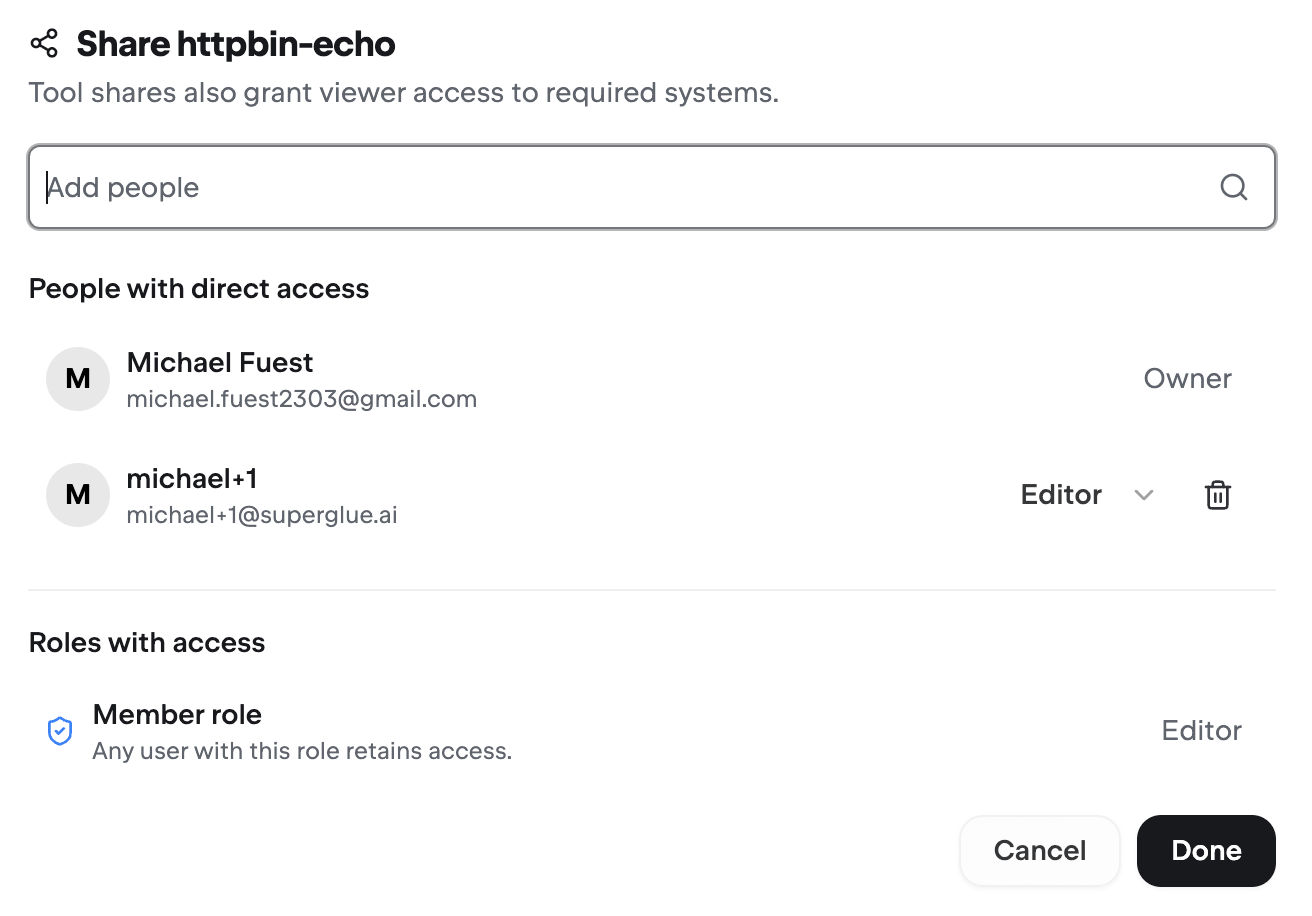
Editors, owners, and admins can share a saved tool or system with other organization members. Viewers cannot share. Use the Share button on a tool or system to give a person viewer or editor access without changing their team’s role. The dialog also shows which roles already include access, so it is clear whether someone has access directly or through a role.
User-Specific Access
Admins can review user-specific access from Control Panel -> Access Rules -> Users. The Users tab shows:- Effective access: what the user can access after combining roles and user-specific access.
- Personal system access: systems granted directly to that user.
- Personal tool access: tools granted directly to that user.
Member Experience
Members only see the tools and systems they can access. When they have viewer access, the app shows a read-only experience: they can view and run/test the resource, but editing and sharing controls are disabled or hidden. When a member has editor access to a tool or system, they can share it with the teammates who need it. Admins do not need to handle every exception; roles set the durable guardrails, and editors can manage day-to-day collaboration on the resources they own or maintain.Admin Workflow
For a healthy RBAC setup, admins should set durable guardrails and let resource owners handle day-to-day sharing:- Configure the Member role for the baseline access every member should have.
- Create custom roles for durable team access, such as Sales, Support, or Finance.
- Use editor permissions for members who should maintain resources and decide who else needs access.
- Assign users to roles from Control Panel -> Organization.
- Encourage editors and owners to use Share instead of routing every one-off access request through an admin.
- Periodically review Access Rules -> Users to confirm direct access is still intentional.